Add a year progress widget to your iPhone
See how much of the year has passed with Spanlet's large Home Screen widget. One square per day, a year percentage, and days remaining. No birthday needed.
Download on the App StoreAvailable now · iOS 17 or later
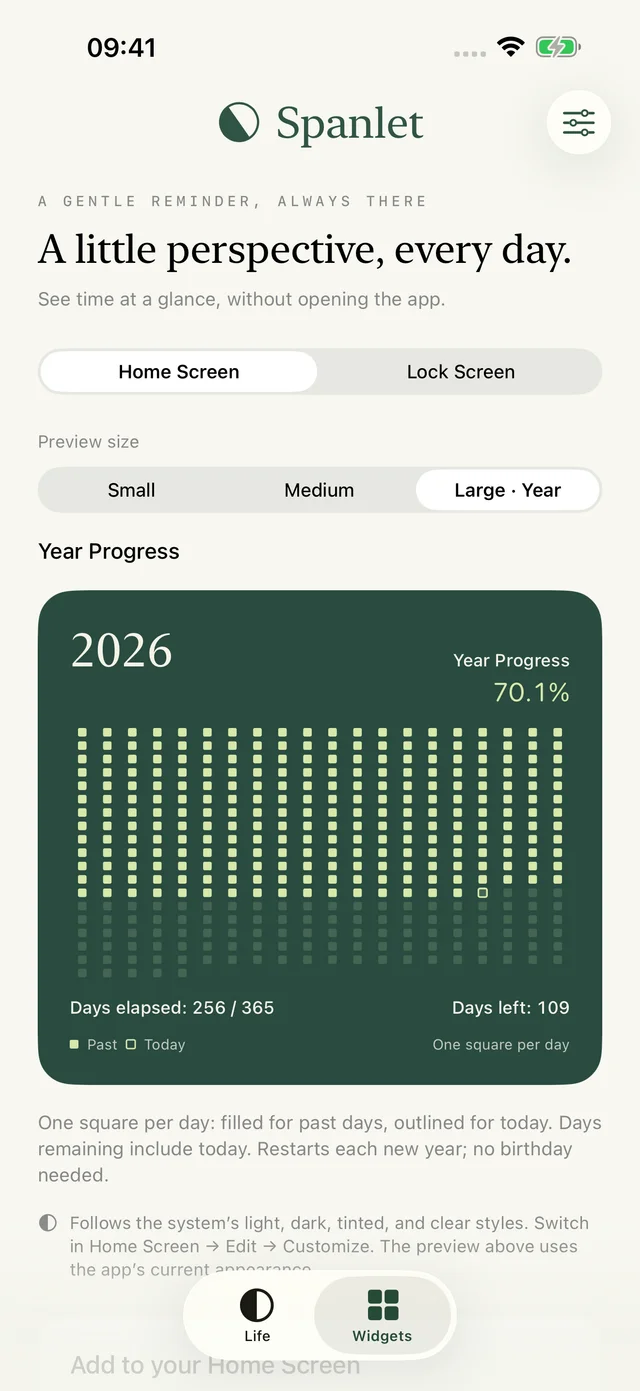
See the current year, one day at a time
Spanlet’s Year Progress widget shows the current calendar year on your iPhone Home Screen. Each square represents one day. Filled squares mark completed days, an outline marks today, and unfilled squares show the days ahead.
The widget also displays the year, the percentage completed, elapsed days, and remaining days. It uses 365 days in a regular year and 366 in a leap year. No birthday or life scale is required.
Add the large Year Progress widget
- Install Spanlet on an iPhone running iOS 17 or later and open it once. You do not need to finish birthday setup to use Year Progress.
- Touch and hold an empty area on your Home Screen.
- Tap Edit → Add Widget, or the + button on older iOS versions.
- Search for Spanlet, then swipe to the large Year Progress widget.
- Tap Add Widget, place it on your Home Screen, and tap Done.
Year Progress is available in the large Home Screen size. The small and medium widgets, and the Lock Screen widgets, display life progress instead. You can follow the life progress widget guide to set those up.
How the percentage and days are counted
The percentage is completed calendar days divided by the total days in that year. Today is still in progress, so it is not counted as a completed day. Days remaining include today.
For example, after 100 complete days in a 365-day year, the widget shows about 27.4% completed and 265 days remaining. The outline marks day 101. This daily view does not count down seconds or estimate a person’s lifespan.
What happens at New Year?
The widget follows the current calendar year and starts a new grid each January. You do not need to create a new countdown or change a target date. On January 1, no days have been completed and the first square marks today.
Spanlet provides a daily timeline, while iOS chooses the actual refresh time. A change of day or year may not appear on the Home Screen at exactly midnight.
Choose an appearance
If you have configured a theme in Spanlet, Year Progress uses it. Without a saved profile it uses Moss. Paper and Dusk are also available in the app, and all three support light and dark appearances.
The screenshot above is an in-app preview. Your Home Screen can look different because iOS also controls widget tinting and other appearance options.
Common questions
Do I need to enter my birthday?
No. Year Progress uses the calendar year. Your birthday is needed only for the separate life progress views and widgets.
Can I put Year Progress on the Lock Screen?
Spanlet currently offers Year Progress as a large Home Screen widget. Its Lock Screen widgets show life progress.
Why does the grid still show yesterday?
iOS manages widget refresh timing. Open Spanlet to check the current year view and allow time for the Home Screen to update. There is no promise of an exact refresh time. If the problem continues, contact support.