How to add a life progress widget on iPhone
Show your life progress on your iPhone Home Screen or Lock Screen with Spanlet. Choose percentages, years, or a life-in-weeks grid and set your own scale.
Download on the App StoreAvailable now · iOS 17 or later
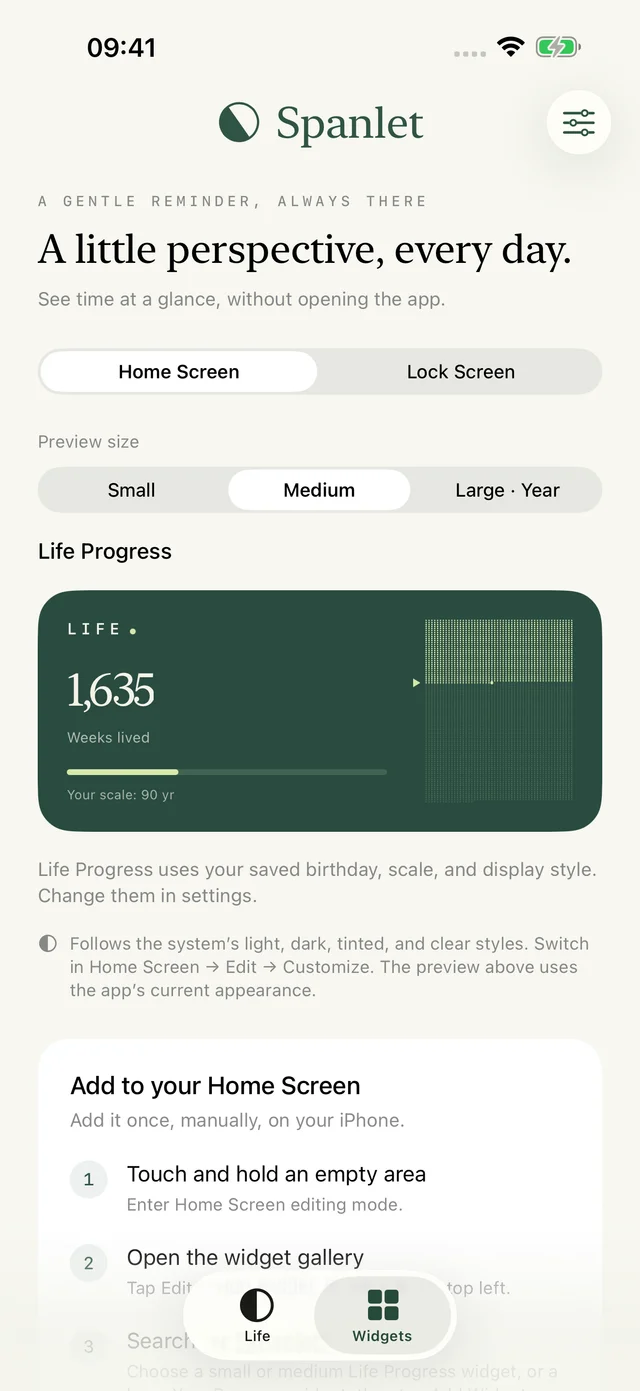
Set up your life progress
Spanlet uses your birthday and a scale you choose to show elapsed time. For example, a 90-year scale lets you see the weeks you have lived against 90 years. This is a personal reference, not a prediction of how long you will live.
Install Spanlet on an iPhone running iOS 17 or later. Open the app, enter your birthday, and choose a scale from 1 to 150 years. Select Percent, Years, or Weeks, then choose a theme. You can change these settings later. Your birthday and preferences stay on your device; no account is needed.
Add a Home Screen widget
- Touch and hold an empty area on your Home Screen until the icons begin to move.
- Tap Edit → Add Widget, or the + button on older iOS versions.
- Search for Spanlet in the widget gallery.
- Choose a small or medium Life Progress widget, then tap Add Widget.
- Place the widget where you want it and tap Done.
Life Progress uses the birthday, scale, and display style saved in the app. Percent gives you a single number; Years shows your current year of life; Weeks shows the weeks already lived. The medium widget includes a visual grid for the year or week view.
The large widget is a separate Year Progress widget for the current calendar year. See the year progress widget guide if you want one square per day without entering a birthday.
Add a Lock Screen widget
- Unlock your iPhone, then touch and hold the Lock Screen.
- Tap Customize and choose Lock Screen.
- Tap the widget area below the time, find Spanlet, and choose a circular or rectangular widget.
- For an inline widget, tap the date row above the time and choose Spanlet there instead.
- Close the widget picker and tap Done.
If the area below the clock is full, remove an existing widget to make room. Lock Screen widgets show life progress using your saved settings. Their appearance also depends on the space available and your iOS customization settings.
Change the view or colors
Open Spanlet to change your display mode, birthday, or scale. Moss, Paper, and Dusk are available with light and dark appearances. iOS can also apply its own tinted or clear widget appearance where supported.
Changes request a widget refresh. iOS controls when that refresh happens, so the widget may not immediately match the app. Spanlet supplies daily timeline updates and does not send push notifications.
If the widget is missing or looks wrong
- Open Spanlet after installation, then return to the widget gallery and search again.
- For life progress, make sure a birthday and valid scale are saved in the app.
- Choose small or medium for life progress. Large is for the calendar year.
- Check that the view and theme in the app match what you want the widget to display. Allow iOS time to refresh after a change.
Apple’s widget instructions cover the system controls, which can vary by iOS version. For help with Spanlet, contact support.